An iPhone and iPad app from Chris Baird
Service Clock: Run Sheet
You run the service from the side of the room. One device holds the run sheet and moves through it. Other iPhones and iPads in the room show the person on stage a large clock. You see at every moment whether the whole service will end on time.
Coming to the App Store. This page will link to it when it is there.
How a service goes
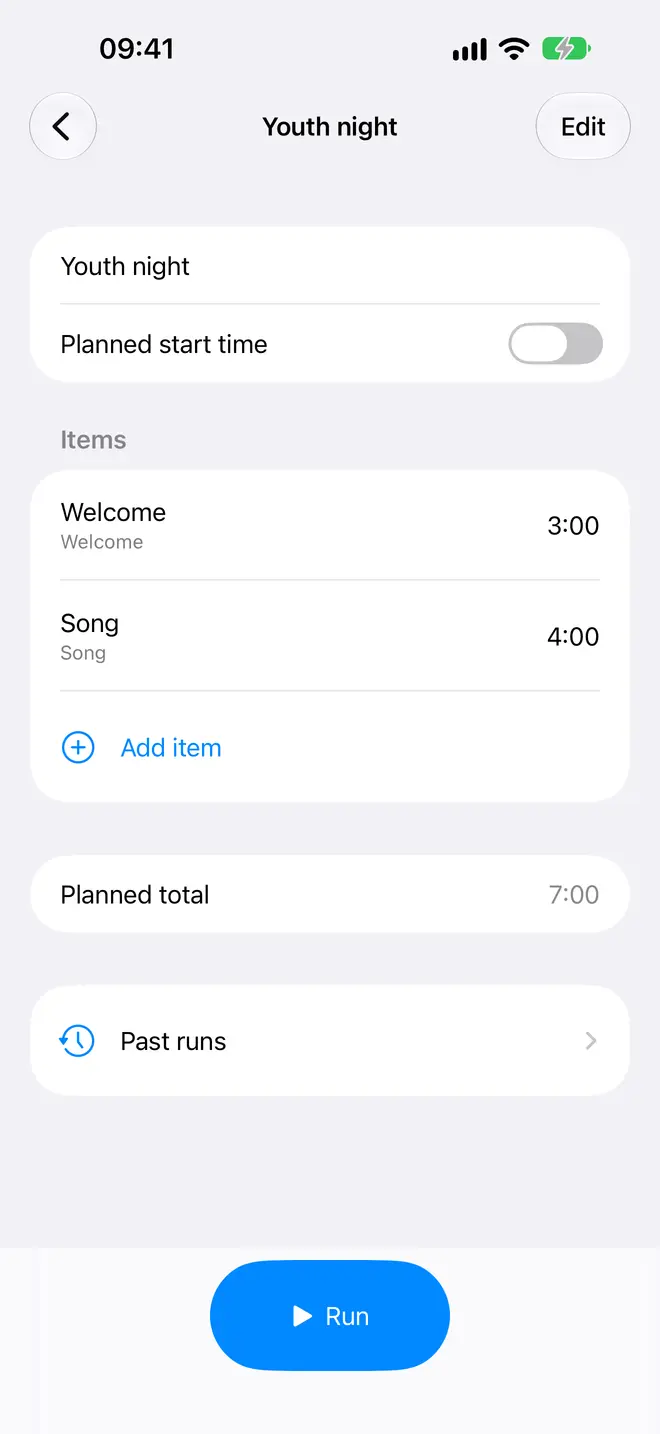
- Write the run sheet. Each item has a title, a kind (welcome, song, prayer, reading, talk, video, offering, announcements or other), who leads it, a planned length and an optional note for the stage, such as “Mic 2”. Each kind starts with a sensible length you can change. Duplicate last week’s sheet and edit it.
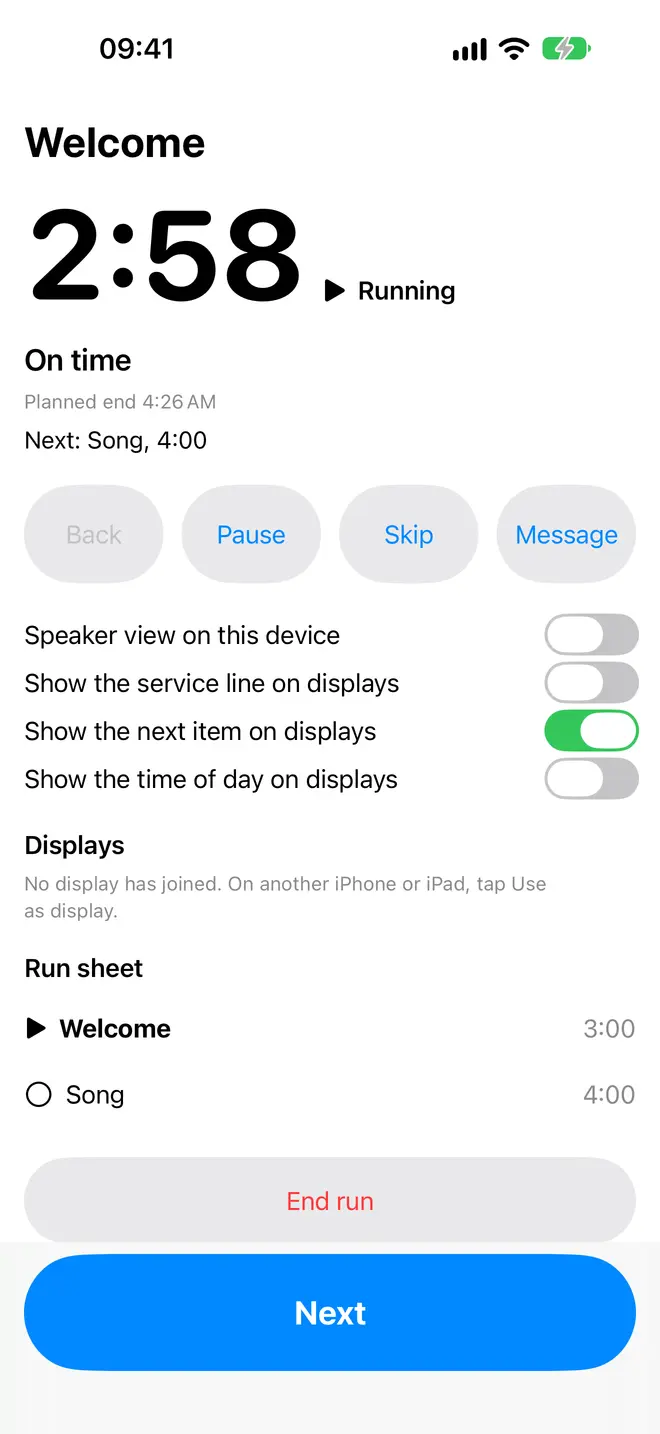
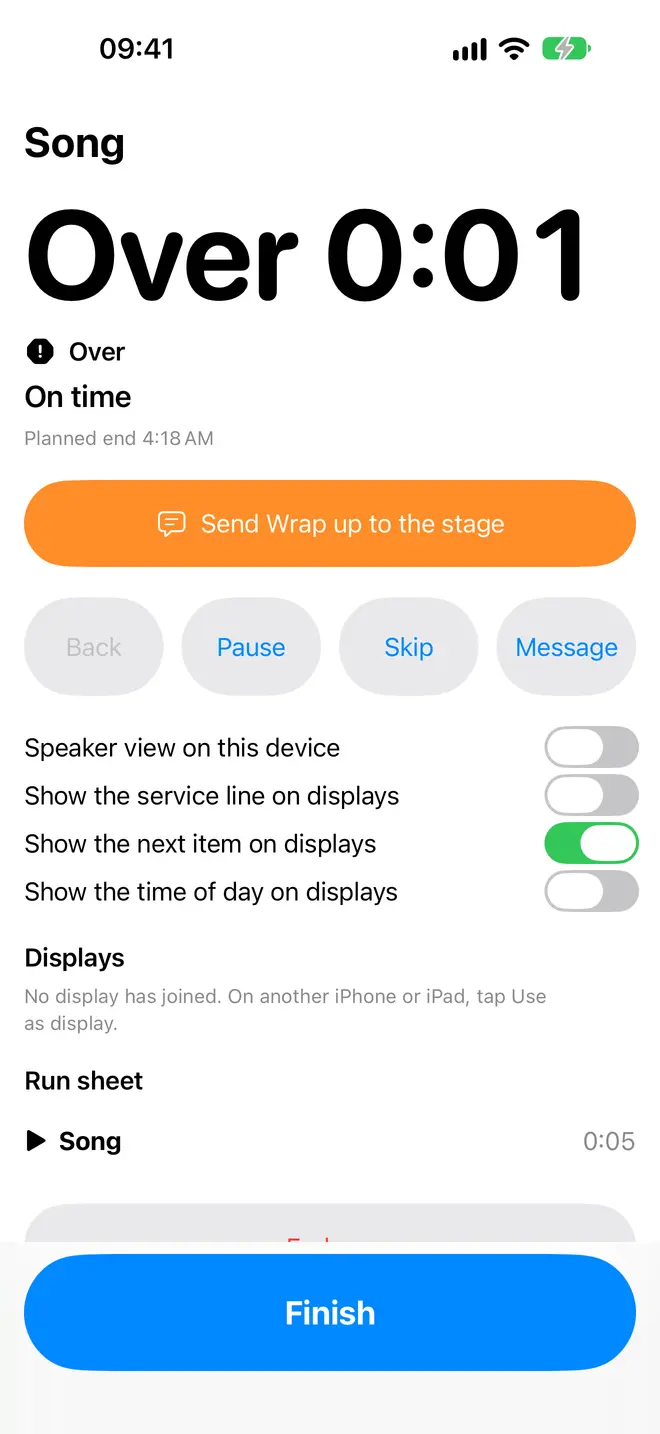
- Run it. Tap Start. Next moves to the following item, Back returns to the one before and gives it back its time, and any item can be skipped. Pause stops the clock if there is a fire alarm or a technical fault, and every screen shows “Paused”.
- See if you will finish on time. The line at the top shows the projected end against the planned end: “On time”, “Running long, about 4 min” or “Ahead”. It counts what is left in the current item plus the items not yet started.
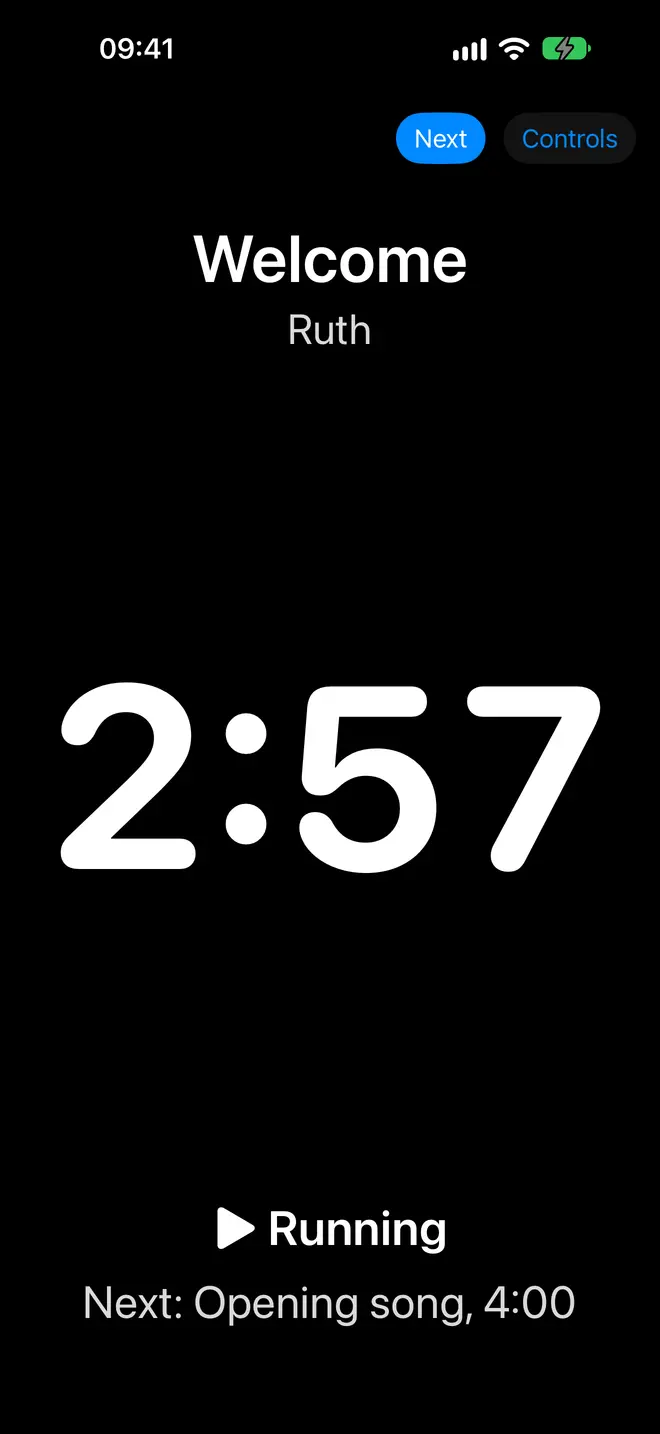
- Show the stage. On a second iPhone or iPad, tap Use as display and pick your controller. You accept it once on the controller, so a stranger’s phone in the room cannot join. The display shows the time left in large type, the current item, what comes next and your messages. Warnings use a word and a symbol as well as colour.
- Message the stage. One tap sends “Wrap up”, “2 minutes”, “Slow down”, “Speed up”, “Look at me”, “Mic is off” or “Thank you”.
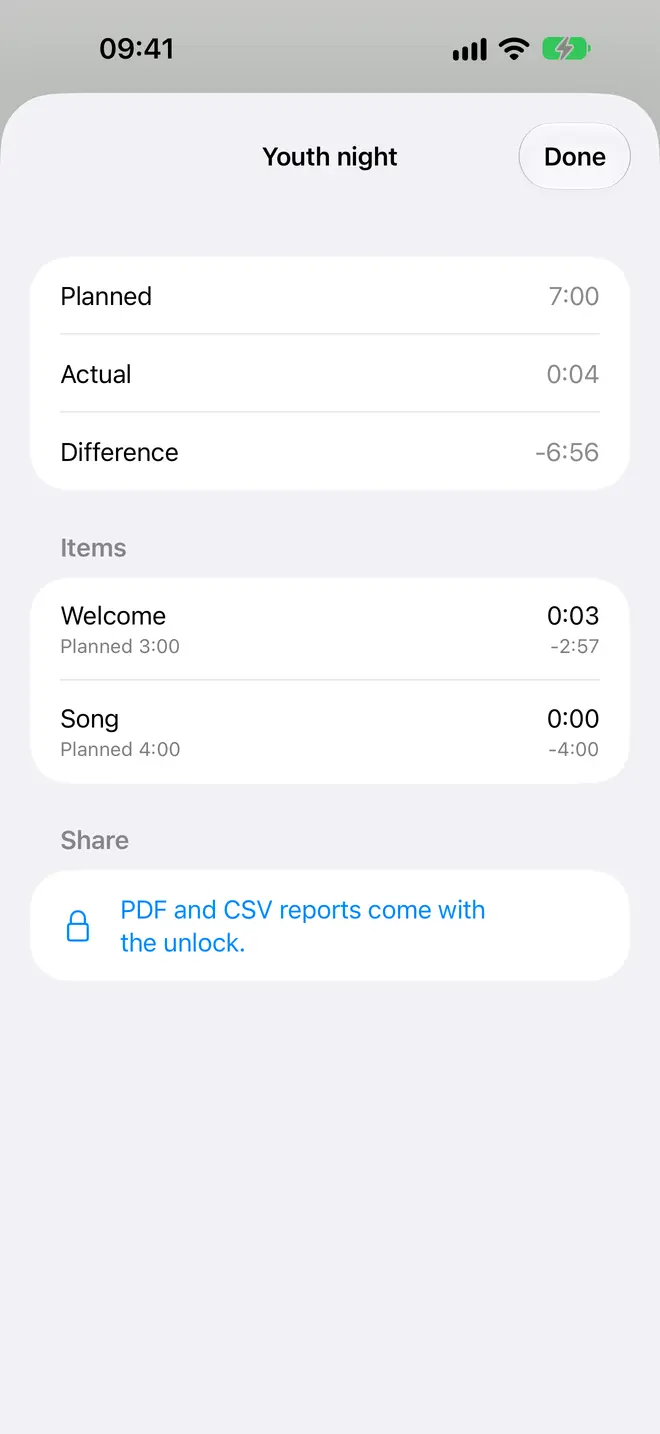
- Review afterwards. The run report lists each item’s planned and actual length and the difference, so you can see which items always run long.
No account, no internet needed in the room. The times come from stored start times, so a locked screen, a phone call or a relaunch does not lose your place. If a display cannot hear the controller for a while, it says so in small type and keeps counting.
What is free and what the unlock adds
The free app runs a whole service every week. You get every run sheet kept, the live run with overrun, pause, Back and skip, the whole-service projection, the preset messages, speaker view on the controller itself, one stage display and the run report on screen.
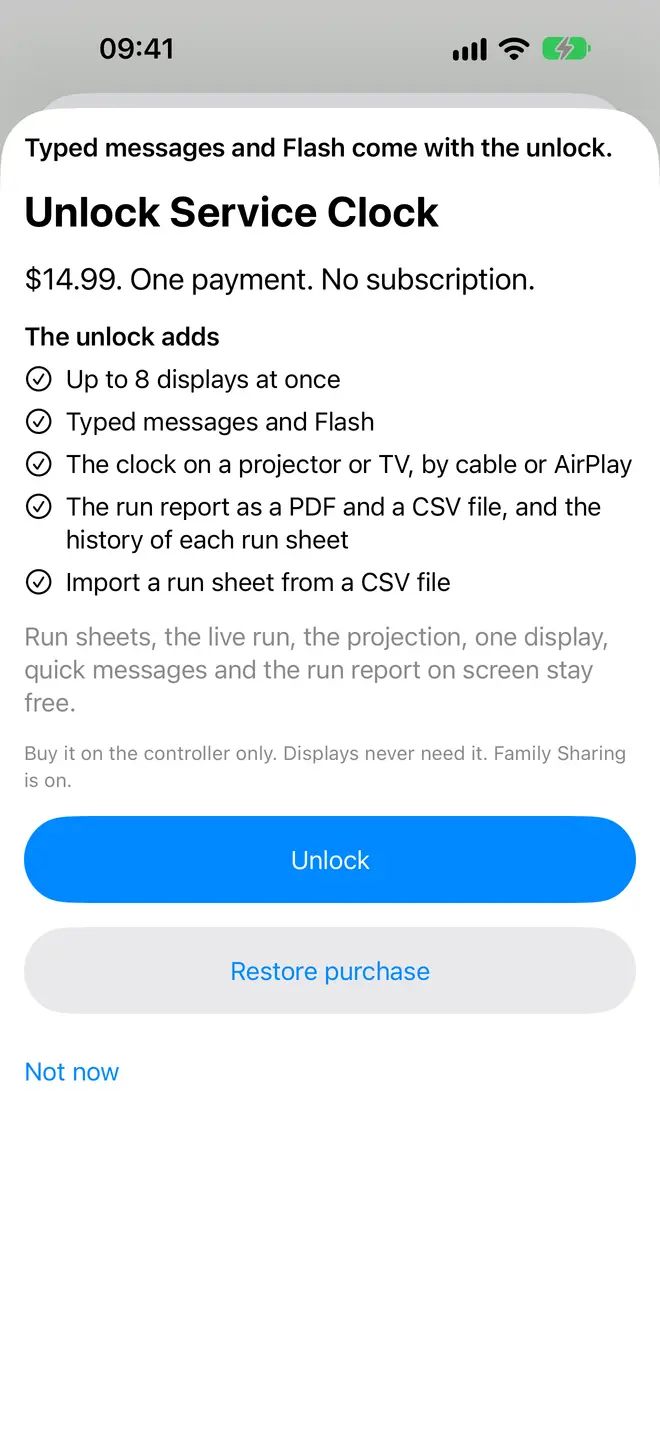
One payment of 14.99 US dollars adds up to 8 displays at once, typed messages and a flashing message border, the clock on a projector or TV by cable or AirPlay, the run report as a PDF and a spreadsheet file with the history of each run sheet, and import of a run sheet from a spreadsheet file. There is no subscription, no ads and no account. The unlock is needed on the controller only, never on the displays.
What stays on your device
Run sheets, runs and settings are stored on the controller and nowhere else. I collect nothing from the app. The controller sends the current run only to displays in the room that you have accepted, over your own network. Read the privacy policy for the app.
If your network will not show the devices
Join the same Wi-Fi on every device. If a venue’s network blocks devices from seeing each other, turn Wi-Fi on with no network joined on both devices, which the app can still use. Keep a display plugged in during a long service.
Questions or trouble with the app
Write to [email protected].
If you have lost your peace and would like to find out why, the free Peace of God check-up takes a few minutes. If you would like to talk with a person, the Free Discovery Call is 25 minutes on Zoom. See what happens on the call.